How to Replace Component Instances in Figma in Bulk (The Fast Way)
Replacing component instances one by one in Figma is one of the least efficient things you can do as a designer. Whether you're migrating to a new design system, deprecating an old component, or simply renaming a layer — this guide shows you how to do it in under a minute using the Design System Migrator plugin.
The Problem: Figma Has No Built-In "Swap All" Feature
Figma's native "swap component" experience only works one instance at a time — right-click → "Swap instance" picks a new component for the selected layer. If you have 40, 100, or 300 instances of a deprecated button spread across 12 pages, you're clicking through all of them manually.
There is no native "replace all instances of this component" option in Figma. Designers who discover this usually search for:
If any of those brought you here — you're in the right place. Here's the proper solution.
When Do You Need to Bulk-Replace Components?
Design system migration
Moving from one component library to another — e.g. from a legacy button to a new design system button with updated padding, radius, or tokens.
Deprecating a component
Your team has marked a component as deprecated. Every screen that still uses it needs to be updated to the current version.
Library refactoring
A library update changed the structure or naming of a component — and now all your files reference the old, detached version.
Replacing a placeholder with the real thing
Early designs used a simple shape or frame as a placeholder. Now you want to swap it for the built component across every screen.
The Solution: Design System Migrator
The Design System Migrator is a Figma plugin that adds the "replace all" capability Figma is missing. Its Component Swap feature lets you:
- checkPick any source component and map it to any target component
- checkReplace instances across a selection, a page, or the entire document
- checkSwap between local components and external library components
- checkUndo the entire operation in one step if needed
- checkHandle hundreds of instances in a single click
Watch the Component Swap in Action
The full process — from selecting components to replacing every instance — takes under 30 seconds.
Step-by-Step: How to Swap Components in Figma
Open the Design System Migrator plugin in your Figma file, then follow these steps.
Select the Source Component (The One to Replace)
Click on any instance of the component you want to replace in your Figma canvas. With it selected, open the Design System Migrator plugin, go to the "Components" tab, and click "Use Selection" under the Source Component section. The plugin will register it and show you a preview.
You only need to select one instance — the plugin will find and replace all other instances automatically based on the scope you choose.
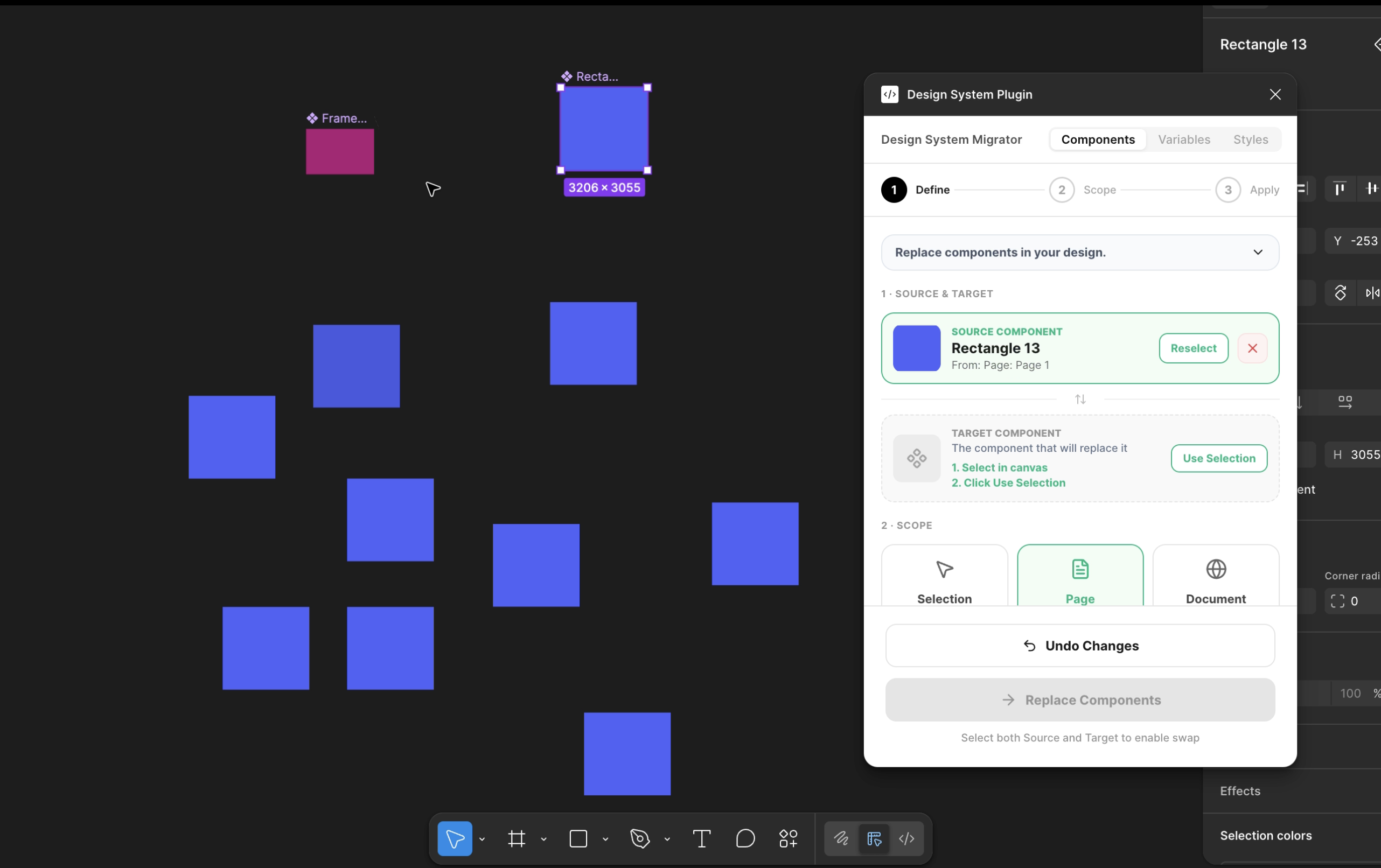
Select the Target Component (The Replacement)
Now select the new component — the one you want to replace it with. Click it on the canvas, then hit "Use Selection" under the Target Component section in the plugin. You'll see both components side-by-side, confirming the mapping is correct.
The source and target components can live on any page within the same file. You can also reselect either at any time before applying.
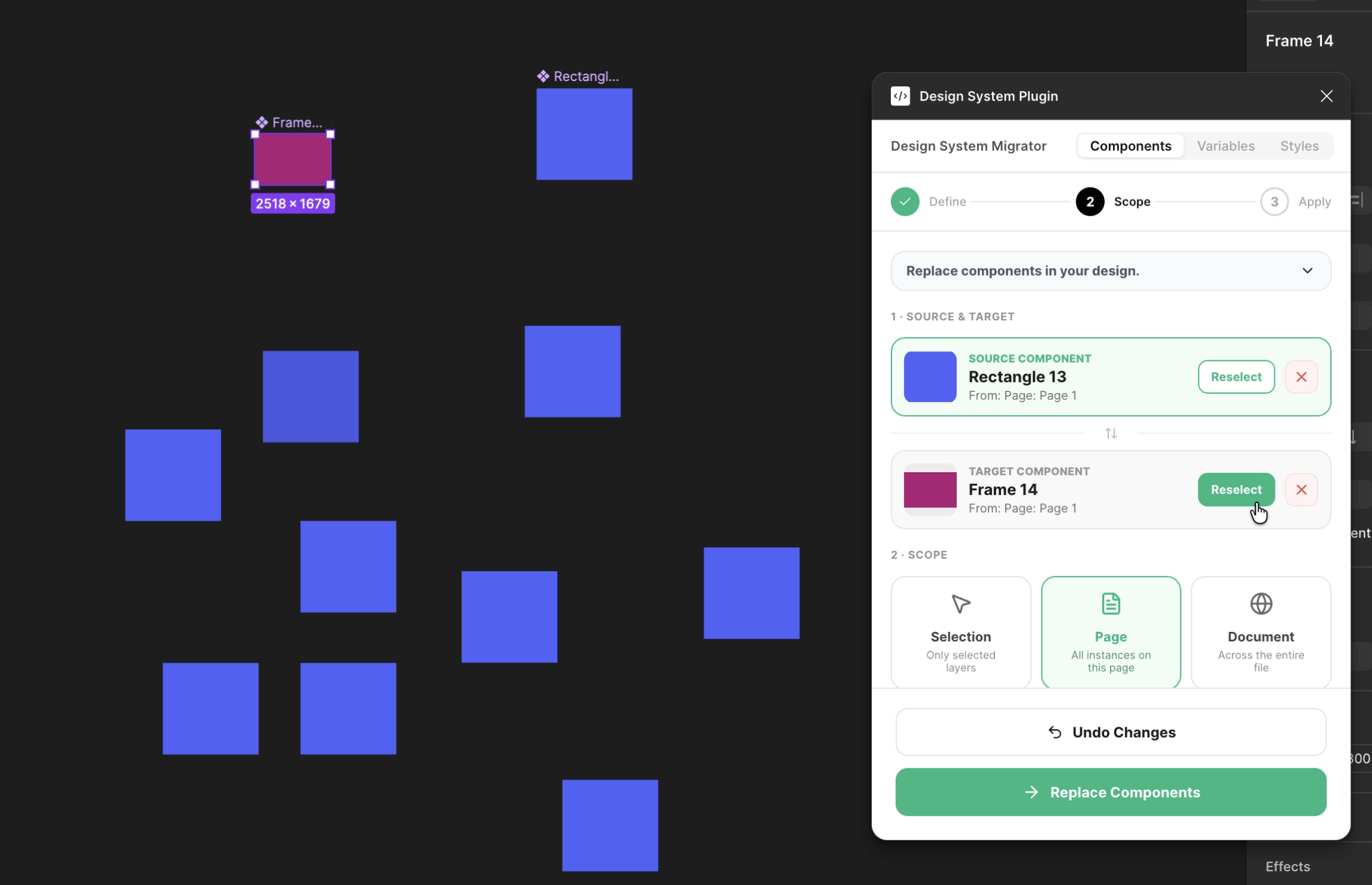
Choose Your Scope & Click "Replace Components"
Choose how far the replacement should reach: just your current Selection, the entire current Page, or the whole Document across every page. Then click the green "Replace Components" button to run the swap.
Use "Document" scope to swap components across every single page in one pass — perfect for large files or full design system migrations.
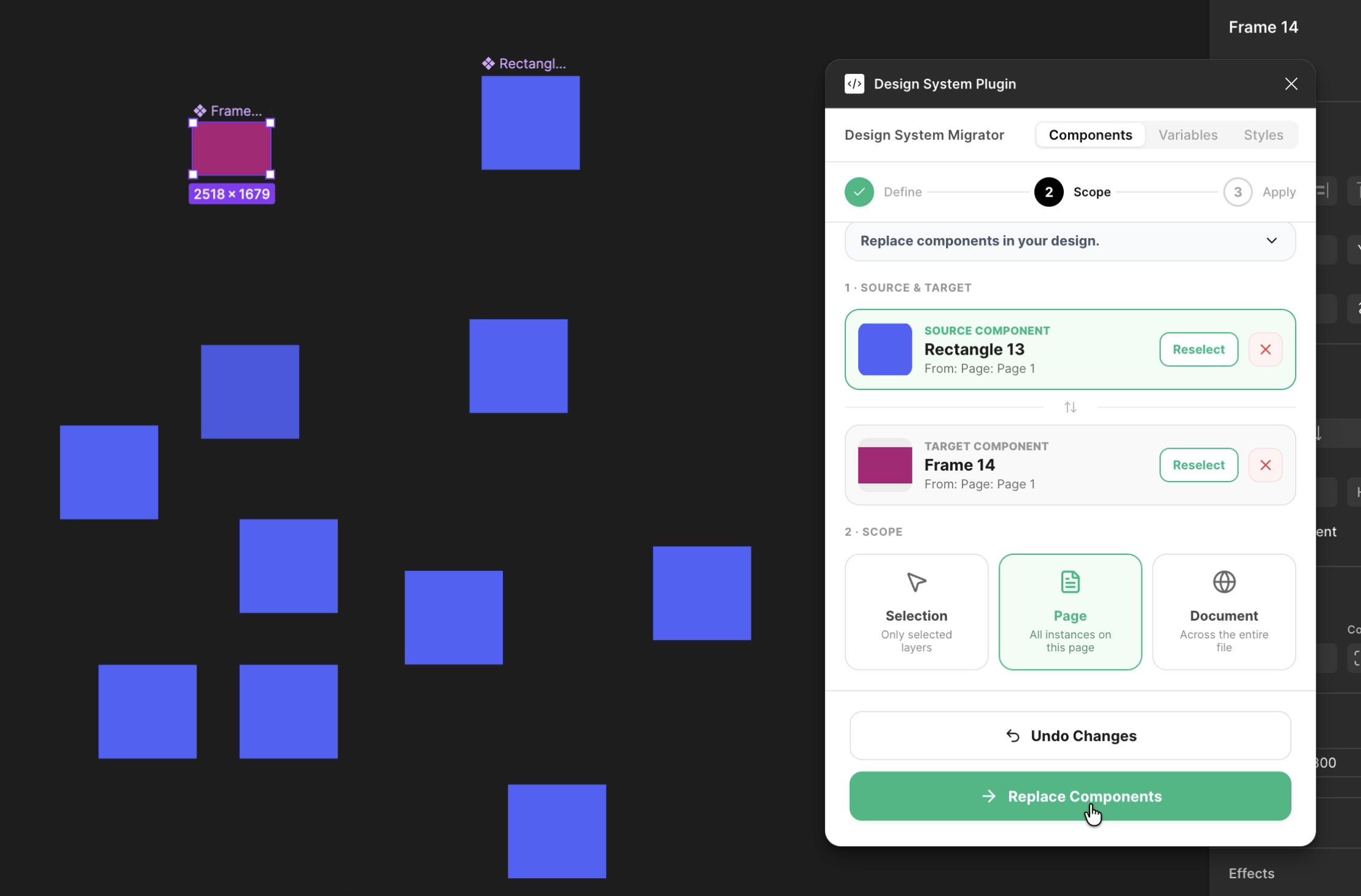
Every Instance Is Replaced — Instantly
The plugin replaces every matching instance in your chosen scope. All 10, 50, or 500+ instances are swapped in seconds. You can undo the entire operation at once if needed.
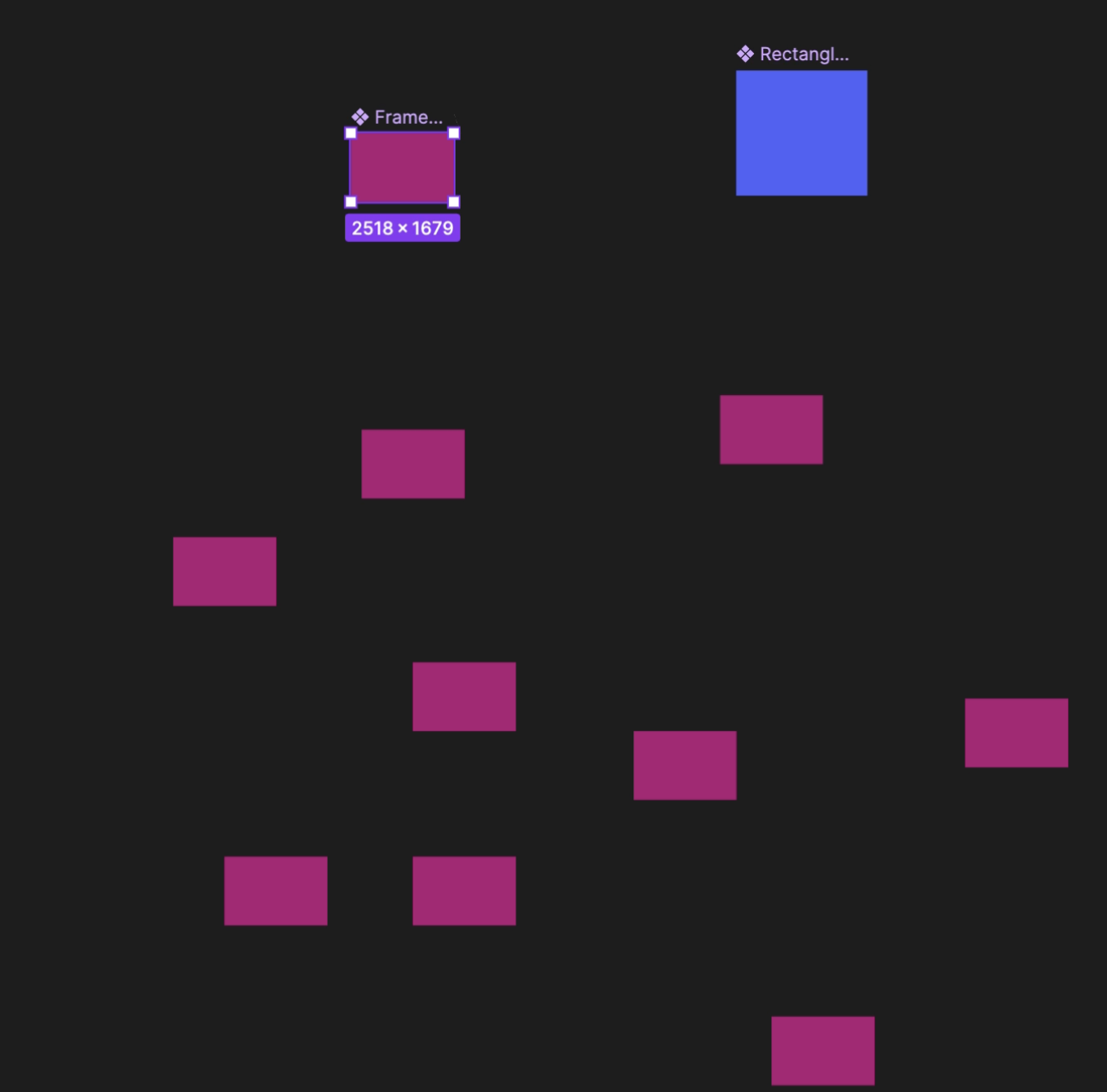
Pro Tips for Large Design Systems
Use "Document" scope for full-file migrations
When doing a big design system swap, always pick the Document scope so no page is missed. This is especially important for handoff files shared with developers.
Swap one component at a time for predictability
Don't try to replace 10 different source components in one go. Map and replace them one pair at a time — it keeps changes reversible and easy to review.
Duplicate the file before a large migration
For full design system migrations, duplicate the Figma file first. This gives you a safe rollback point in case anything breaks beyond a simple undo.
Verify with "Selection" scope first
Run a test swap on just a few selected instances using the "Selection" scope before going full-document. This lets you preview the result before committing.
Frequently Asked Questions
Can I swap a component that lives in a different file or library?
Yes. The target component can come from any library published to your team. As long as both the source and target are accessible in your file, the plugin can map and replace them.
What happens to overrides (text, fills, etc.) during a component swap?
The plugin replaces the component reference while preserving layer overrides where the new component has matching layer names. Overrides on layers that don't exist in the new component will be dropped.
Can I undo the swap if something looks wrong?
Absolutely. The plugin groups all changes into a single undo step. Hit Cmd+Z (Mac) or Ctrl+Z (Windows) immediately after to revert every replaced instance at once.
Does it work across all pages in a Figma file?
Yes — choose "Document" as your scope and the plugin will scan and replace matching components on every page in the file.
What's the difference between component swap and style swap?
Component swap replaces component instances (e.g. replacing an old Button with a new one). Style swap replaces applied color, text, or effect styles across layers. The Design System Migrator plugin handles both.
Summary
Figma doesn't give you a native "swap all" button — but the Design System Migrator plugin fills that gap completely. Three clicks: pick source, pick target, choose scope, and every matching instance is replaced.
Whether you're doing component cleanup, a full design system migration, or just replacing one deprecated instance across hundreds of screens, this plugin turns a full day of work into 30 seconds.
If you also need to migrate color, text, or effect styles across your files, the same plugin handles that too — check out the Style Swap guide below.
Get the Plugin
Component Swap, Style Swap, Variable Migration — all in one plugin.
Variable Swap Guide
Learn how to migrate and replace variables across your Figma files in bulk.